One Kurdish Recording, Everything You Need: What a mazdek AI Transcript Gives You
Upload one Kurdish audio or video file and get a time-coded transcript, subtitles you can style and burn into the video, dubbing into other languages, translations, a summary, a news article and answers to your questions — all from the same page. Here is what each tab does.

A transcript used to be the end of the job. In mazdek AI Studio it is the start: one upload produces the text, subtitles you can put on your video, translations, a summary and more, each in its own tab on the same page. This guide walks through what you get after a Kurdish recording is transcribed.
Before the tabs: no language picker
You upload a file and Studio works out the language itself, whether it is Kurmancî, Soranî, Kirmanckî or one of many other languages. If a recording is genuinely unclear, Studio asks you once and then carries on. Audio and video are both accepted; when you upload a video, the Video Subtitles tab appears on the result page.
Transcript: the text, with timing
The Transcript tab is the written record of the recording.
- Polished view shows clean, readable text with punctuation.
- Timestamped view shows each line with its time, so you can click a line and the player jumps to that moment.
- Speakers are separated when several people talk.
- Search finds a word anywhere in the recording, and edit lets you correct a name or a term directly.
Exports cover the formats people actually use: plain text, Word and PDF (with or without timecodes), SRT and VTT subtitle files, CSV, Markdown and JSON.
Video Subtitles: styled, placed and burned into the video
This is the tab most video makers come for. The preview on screen is exactly what the downloaded video will look like.
- Styles: news, social, plain or cinema presets; outline or box backdrop; original, upper or lower case; and word-by-word highlighting.
- Placement: pick bottom, middle or top, or simply drag the subtitle to any spot on the video.
- Your logo: add your logo once, drag it into place and resize it. It is remembered for your next video.
- More languages: add a subtitle language from a searchable list. Languages you already translated appear as tabs.
- Two languages at once: show a second language with its own colour, either under the first line or in a separate position.
- Fix any line: tap a line to correct it; tap its time to jump there in the video.
When it looks right, download the MP4 with the subtitles burned in. Rendering runs in the background with a progress bar, so you can close the tab and come back. If you only need files, download SRT or VTT for any language.
Dubbing (Max plan)
On the Max plan the same tab can dub the video into another language. Pick a subtitle language and a voice, and each line is spoken in that voice and fitted to its timing. Background music is kept: the original voice is separated out where possible and the new voice sits on top of the music; otherwise the original sound stays quietly underneath. Preview the dubbed version in the player, download it as an MP4, or burn the subtitles into the dubbed video. Videos up to 15 minutes can be dubbed.
Making short clips? Send the video to Klîp and the subtitles, style and logo travel with it as editable layers, not burned-in pixels, so you can keep adjusting them there.
Videos are kept for 7 days so you can make subtitled versions; after that they are deleted automatically, and you can delete them sooner yourself.
Translation: any language, ready for subtitles
The Translation tab turns the transcript into another language. Every language you translate becomes its own tab, and each one can be downloaded as SRT, as a timecoded PDF or as a plain PDF.
Translation and subtitles share the same work: translate into German once, and German subtitles are ready in the Video Subtitles tab without paying for a second translation.
Summary: the recording in a minute
The Summary tab gives you the key points as a list and a short paragraph that captures the whole recording. It is the fastest way to decide whether an hour-long interview is the one you need.
News and social posts
The News tab writes a news-style article with a headline from what was said, and the Social tab drafts posts ready to share. Both start from the transcript, so names and quotes come from the recording rather than from guesswork.
Ask mazdek: questions about the recording
In the Ask tab you talk to the recording. Ask "What did the second speaker say about the budget?" or "List every date that was mentioned", and the answer comes from the transcript itself.
Voice it
The Voice tab reads the text aloud with a natural voice, which is useful for turning a cleaned-up transcript into an audio version.
On your phone too
Everything above works the same in the mazdek AI app for iPhone and Android, including the Video Subtitles tab, dragging subtitles and adding your logo.
Try it
Open Studio, upload a Kurdish recording and open the tabs one by one. The free plan includes monthly minutes with no credit card, so you can see every result on your own audio before choosing a plan.
Frequently asked questions
- Do I have to choose the language before uploading?
- No. The language is detected automatically. If a recording is ambiguous, Studio asks you once which language it is before it continues.
- Can I download my video with the subtitles in it?
- Yes. In the Video Subtitles tab you style and place the subtitles, then download an MP4 with the subtitles burned in. Rendering runs in the background, so you can leave the page and come back. SRT and VTT files are also available.
- How long is my video kept?
- Uploaded videos are kept for 7 days so you can make subtitled versions, then deleted automatically. The transcript itself stays in your history. You can also delete the video yourself at any time.
- If I translate the transcript, do I pay again for subtitles in that language?
- No. The Translation tab and the Video Subtitles tab share the same translation. Translate once, and the subtitles in that language are ready.
- Can I dub my video into another language?
- Yes, on the Max plan. In the Video Subtitles tab, choose a language and a voice; the lines are spoken in that voice, fitted to their timing and mixed over the original background sound. You can preview it, download the dubbed MP4, or burn subtitles into it. Videos up to 15 minutes can be dubbed.
Related articles
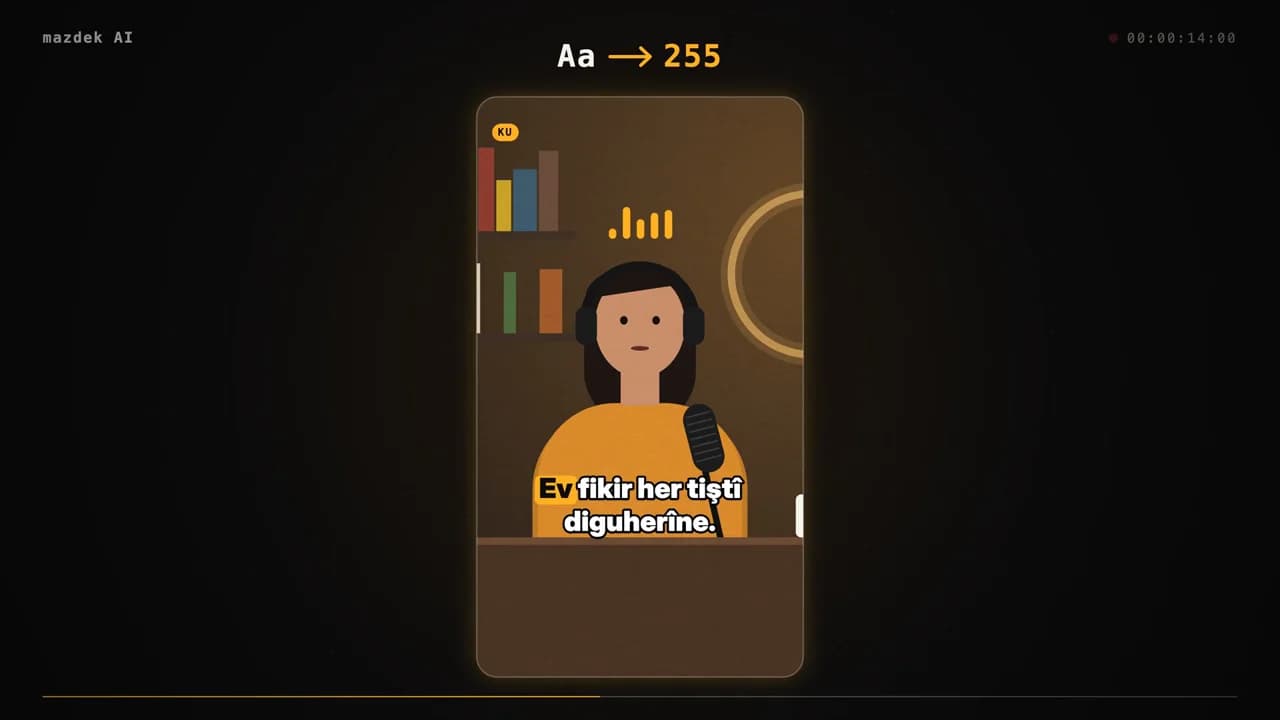
How to Turn a Long Kurdish Video into Short Vertical Clips (TikTok, Reels, Shorts) in 2026
A practical guide to cutting short vertical clips from a long Kurdish interview, podcast or stream: how AI finds the best moments, how Kurmancî and Soranî karaoke captions work, which layouts fit which platform, and what the free and paid plans include.
- #video-clips
- #short-video
- #subtitles
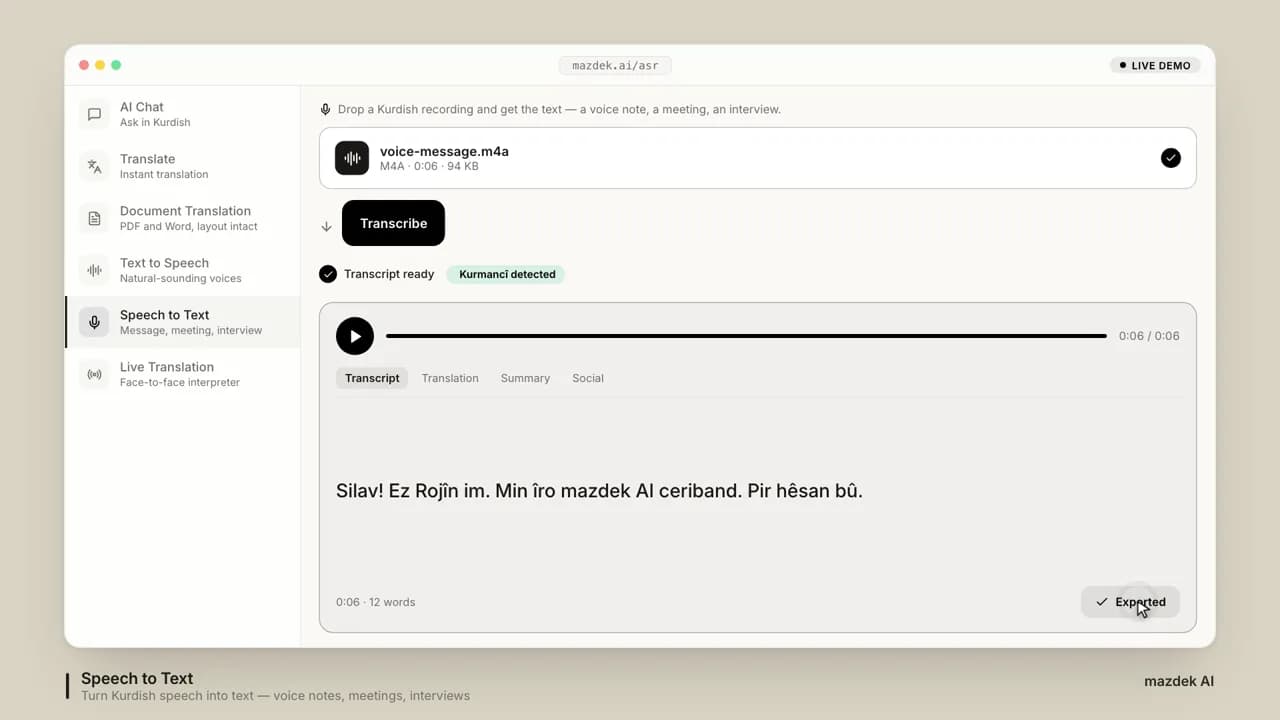
How to Turn Kurdish Audio and Video into Text (and Subtitles) in 2026
A step-by-step guide for turning Kurdish voice messages, interviews, lectures and videos into accurate text, subtitles and translations — which dialect to pick, what the plans allow, and how to get clean results from noisy recordings.
- #speech-to-text
- #transcription
- #subtitles